
Printer blinking:Why is my printer's light blinking and how can I fix it?
Q: Why is my printer's light blinking and how can I fix it?
A: A blinking printer light usually indicates an error or status alert. According to HP's official support page 'Blinking or Flashing Lights on HP Printers,' common causes include paper jams, low ink, or a cartridge issue. First, check for any paper jams in the input and output trays. Then, verify that ink or toner levels are sufficient. If the problem persists, try resetting the printer by turning it off and unplugging it for 60 seconds. For specific error codes, consult your printer model's user guide, as blinking patterns often correspond to different issues.
Q: What does a blinking orange light on a Canon printer mean?
A: A blinking orange light on a Canon printer typically indicates an error condition. Per Canon's official manual 'Blinking Orange Light,' the number of blinks corresponds to specific errors: two blinks may indicate a paper jam, three blinks a cartridge problem, and so on. To resolve, first turn off the printer and clear any obstructions. If the light continues to blink, refer to the manual for the exact blink count. Canon also recommends reinstalling the ink cartridges and ensuring the print head is properly seated. If issues persist, contact Canon support for further assistance.
Q: How do I stop my Epson printer's power light from blinking?
A: A blinking power light on an Epson printer often signals that the printer is busy, in an error state, or needs maintenance. According to Epson's official support article 'Blinking Lights on Epson Printers,' try these steps: First, cancel any print jobs and restart the printer. Check for paper jams or low ink. If the light blinks after replacing ink, the ink cartridges may need to be reinserted. For models with a maintenance box, ensure it's not full. If the blinking persists, run a nozzle check or clean the print head via the printer's utility software.
Q: Why is my Brother printer's error light blinking and how to reset it?
A: A blinking error light on a Brother printer indicates a specific issue, such as a paper jam, cover open, or toner problem. Brother's official support page 'Blinking LED Lights' advises checking the display or LED pattern for error codes. Common fixes include opening and closing the top cover to reset the toner, clearing any jammed paper, and ensuring all covers are securely closed. To reset, turn off the printer, wait 10 seconds, and turn it back on. If the light continues to blink, consult the manual for the exact blink sequence, which often points to a particular component.
Q: What should I do if my HP printer's ink cartridge light is blinking?
A: If your HP printer's ink cartridge light is blinking, it typically means the cartridge needs attention. HP's official document 'Blinking Ink Cartridge Light' suggests the following: First, open the cartridge access door and check that all cartridges are properly installed and seated. Remove and reinsert the blinking cartridge. If the light still blinks, the cartridge may be low on ink or defective. Try replacing it with a new genuine HP cartridge. Also, clean the cartridge contacts with a dry, lint-free cloth. If the issue persists, perform a hard reset by unplugging the printer for 60 seconds.
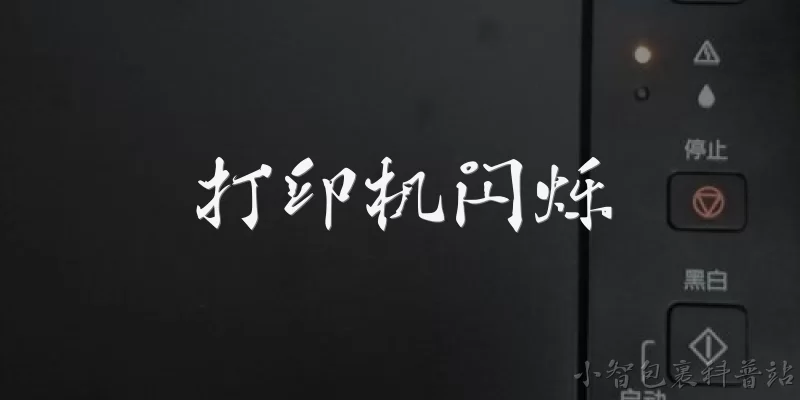
Dialogue about
Common scenarios of "Printer blinking"
【User】 My printer's light is blinking and it won't print. Any idea what's going on?
【Tech Support】 I can help with that. Which light is blinking—power, ink, paper, or error?
【User】 It's the orange error light, blinking continuously.
【Tech Support】 Okay, continuous orange usually means a hardware error. Have you tried turning it off and on again?
【User】 Yes, I unplugged it for a minute and plugged it back in. Same blinking.
【Tech Support】 Does the printer make any unusual noises when you turn it on?
【User】 It makes a grinding sound for a few seconds, then stops.
【Tech Support】 That could be a stuck print head or a paper jam. Can you open the front cover and check for any obstructions?
【User】 I opened it. I see a small piece of torn paper near the rollers. Could that be it?
【Tech Support】 Yes, that's likely causing the error. Carefully remove the paper with tweezers, avoiding touching the rollers.
【User】 Okay, I got it out. Now the light is still blinking, but maybe it needs a reset?
【Tech Support】 After removing jammed paper, turn off the printer, unplug it for 60 seconds, then plug back in and turn on.
【User】 Alright, doing that now. ... Okay, now the light is solid green and it's humming normally.
【Tech Support】 Great, that means it's ready. Try printing a test page.
【User】 I printed a test page and it came out fine. Thanks!
【Tech Support】 You're welcome. If the blinking returns, check for firmware updates or contact support.
【User】 Will do. One more thing—what causes paper to tear like that?
【Tech Support】 Usually misaligned paper guides or using damp/wrinkled paper. Make sure the guides are snug against the stack.
【User】 Got it. I'll check the guides. Appreciate the help!
【Tech Support】 Happy to help. Have a good day!