
Barcode printer not feeding paper:Why is my barcode printer not feeding paper?
Q: Why is my barcode printer not feeding paper?
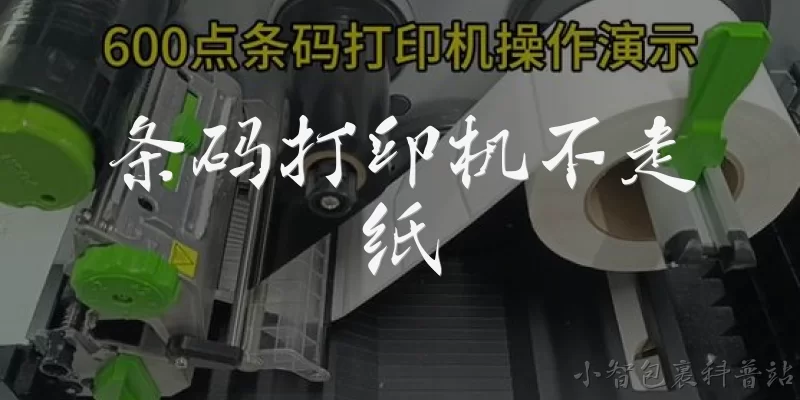
A: A barcode printer that fails to feed paper often has a mechanical or sensor issue. First, check if the paper roll is loaded correctly and the spindle turns freely. Dirty or misaligned sensors may not detect the gap or black mark, causing the printer to stop feeding. Also, the platen roller or feed roller might be worn or dirty, reducing grip. Inspect for paper jams or torn labels blocking the path. Finally, verify the printer driver settings match the media type and size. If the feed motor is silent, it could be a hardware failure requiring service.
Q: How do I fix a barcode printer that is not feeding paper?
A: To fix a non-feeding barcode printer, start by powering it off and clearing any jammed labels. Clean the printhead, platen roller, and sensors with isopropyl alcohol and a lint-free swab. Recalibrate the printer to let it auto-detect the label gap or black mark—consult your model's manual for the calibration procedure. Check that the media guide is snug but not too tight. In the driver, ensure the media type (gap, black mark, continuous) matches your labels. If the feed roller is worn, replace it. Test with a known-good roll of labels. If the motor still doesn't turn, seek professional repair.
Q: What causes a barcode printer to stop feeding labels mid-roll?
A: Mid-roll feeding stops usually indicate a sensor or calibration problem. The printer may fail to detect the gap between labels if the sensor is dirty or blocked. Dust, adhesive residue, or a misaligned sensor can cause this. Another common cause is incorrect media settings in the driver—for example, using continuous mode when gap mode is needed. The roll might also be wound too tightly, causing the motor to stall. Check for a low-power condition or a loose motor cable. If the printer pauses and the error light blinks, run the auto-calibration routine. Persistent issues may require sensor replacement or firmware update.
Q: How do I clean the sensors on a barcode printer that is not feeding?
A: To clean the sensors on a non-feeding barcode printer, first turn off and unplug the printer. Open the media cover and locate the gap sensor (usually a small window near the printhead) and the black mark sensor (often under the media path). Use a can of compressed air to blow out dust, then gently wipe the sensor lens with a cotton swab moistened with isopropyl alcohol. Do not use excessive liquid. Allow it to dry completely before reloading media. After cleaning, run the printer's auto-calibration routine. If the sensor remains unresponsive, it may be faulty and need replacement. Regular cleaning prevents feeding issues.
Q: Why does my barcode printer feed continuously without stopping?
A: Continuous feeding in a barcode printer typically means the printer is in continuous media mode or cannot detect label gaps. Check the driver settings: if 'continuous' is selected instead of 'gap' or 'black mark,' the printer will feed without stopping. Also, the gap sensor might be dirty, misaligned, or blocked, so it never sees the gap. The label stock might be transparent or have very low contrast, confusing the sensor. Try recalibrating the printer. If the issue persists, test with a different roll of labels. For black mark media, ensure the sensor is positioned over the marks. Adjusting the sensor sensitivity in the printer's menu can also help.
Dialogue about
Common scenarios of "Barcode printer not feeding paper"
【Customer】 Hi, my barcode printer isn't feeding paper properly. It just stopped working this morning.
【Support Agent】 I'm sorry to hear that. Let's troubleshoot. Can you tell me the model of your printer?
【Customer】 It's a Zebra ZT410.
【Support Agent】 Thanks. Is the printer showing any error lights or messages?
【Customer】 There's a red light blinking on the top panel.
【Support Agent】 That usually indicates a media or ribbon error. Have you checked if the paper is loaded correctly?
【Customer】 I reloaded it, but it still won't feed. The paper seems stuck.
【Support Agent】 Okay, let's check the media path. Open the printhead and look for any obstructions or debris.
【Customer】 I opened it. There's some torn paper jammed near the roller.
【Support Agent】 That could be the issue. Carefully remove the jammed paper. Make sure not to damage the sensors.
【Customer】 I removed the torn paper. Now what?
【Support Agent】 Close the printhead and turn the printer off and on again. Then try feeding paper.
【Customer】 I did that. The red light is still blinking and it's not feeding.
【Support Agent】 Let's calibrate the printer. Press and hold the pause and feed buttons simultaneously until the light blinks.
【Customer】 Okay, I did that. The light blinked and then turned solid green. But it's still not feeding.
【Support Agent】 Try pressing the feed button once. Does it advance the paper?
【Customer】 No, nothing happens. The paper doesn't move at all.
【Support Agent】 It might be a hardware issue with the motor or sensor. Is the printer under warranty?
【Customer】 Yes, I bought it last year. What should I do?
【Support Agent】 I'll arrange for a repair. Please provide your serial number and contact details, and we'll send a technician.