How to load a barcode printing machine:What are the basic steps to load a barcode printing machine?
Q: What are the basic steps to load a barcode printing machine?
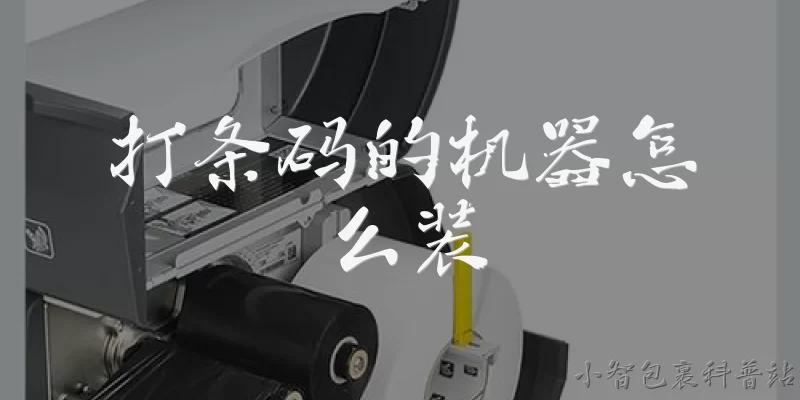
A: Loading a barcode printing machine typically involves four main steps: preparing the media, loading the ribbon if required, threading the labels, and calibrating the sensor. First, open the printer cover and locate the media spindle. Slide the label roll onto the spindle, ensuring it unwinds in the correct direction. Next, if you're using thermal transfer printing, install the ribbon supply and take-up rolls, matching the coated side to the media. Then, route the labels through the media guides and adjust them to the label width to prevent skewing. Finally, close the cover and run a calibration or feed test so the sensor detects the label gaps or black marks. Always consult your specific printer model's manual, as loading paths can vary between brands like Zebra, Honeywell, or TSC.
Q: How do I load a ribbon into a barcode printing machine?
A: Loading a ribbon is essential for thermal transfer barcode printers. Start by turning off the printer and opening the media cover. Locate the ribbon supply spindle (usually at the rear or top) and the take-up spindle (at the front). Remove any used ribbon core from the take-up spindle. Unpack the new ribbon and place the supply roll onto the supply spindle, ensuring it rotates in the direction indicated by an arrow on the printer. Then, attach the leader of the ribbon to the empty take-up core, winding it a few turns to secure it. The ribbon's coated side must face the labels. Route the ribbon through the printhead assembly, following the ribbon path diagram. Close the cover, turn on the printer, and run a test print to verify proper transfer. Incorrect ribbon loading can cause wrinkles or print voids.
Q: What should I check before loading labels into a barcode printing machine?
A: Before loading labels, inspect the media roll for damage, such as torn edges or adhesive ooze, which can jam the printer. Verify that the label size and type match your print job and the printer's specifications. Check the media sensor type—gap, black mark, or continuous—and ensure the labels have the corresponding detection features. Clean the printhead and platen roller with a lint-free swab and isopropyl alcohol to remove residue. Adjust the media guides to fit the label width, leaving a slight gap to avoid binding. Also, confirm the printer is powered off and unplugged if you're performing a thorough cleaning. Finally, review the loading diagram inside the printer or in the manual. Skipping these checks can lead to misfeeds, poor print quality, or sensor errors during operation.
Q: How do I calibrate a barcode printing machine after loading new media?
A: After loading new media, calibration ensures the printer correctly detects label length and gaps. Most printers have an auto-calibration feature: press and hold the Feed button until the indicator light blinks, then release. The printer will advance several labels to measure them. For manual calibration, enter the printer's menu, select 'Calibrate Media,' and follow the prompts. If your printer uses a movable sensor, slide it to align with the gap or black mark on the labels before calibrating. After calibration, print a configuration label to verify settings like media type, print method, and sensor profile. If labels feed incorrectly, recheck the sensor position and media guides. Some models, like Zebra ZT series, use a three-flash sequence for calibration. Always refer to your model's manual for exact steps, as improper calibration can cause skipped labels or continuous feeding.
Words of experience
Common scenarios of "How to load a barcode printing machine"
【Trainer】 Good morning, everyone. Today we'll learn how to load a barcode printing machine. First, ensure the machine is powered off and unplugged for safety.
【Trainee】 Should I also remove any existing media before starting?
【Trainer】 Yes, always remove any old labels or ribbon. Open the media compartment cover to access the interior.
【Trainee】 I've opened the cover. What's the next step?
【Trainer】 Locate the media spindle. It's the rod that holds the label roll. Slide the roll onto the spindle, making sure it's oriented correctly.
【Trainee】 How do I know which way to orient the roll?
【Trainer】 The labels should feed from the top of the roll, with the printable side facing up as it comes off. Check the diagram inside the cover for reference.
【Trainee】 Got it. The roll is on. Now what?
【Trainer】 Next, route the media through the guide. Pull the leading edge of the labels forward and thread it through the media guides, which should be adjusted to the width of your labels.
【Trainee】 Should I adjust the guides before or after threading?
【Trainer】 Adjust the guides first to match the label width, then thread the media through. They should be snug but not too tight.
【Trainee】 Okay, the media is threaded. What about the ribbon? Do I need to load that too?
【Trainer】 Yes, if you're using thermal transfer printing. If it's direct thermal, you can skip the ribbon. Which mode are you using?
【Trainee】 We're using thermal transfer, so I need to load the ribbon. How do I do that?
【Trainer】 Open the ribbon compartment. Place the ribbon roll on the supply spindle, with the ribbon unwinding from the bottom. Then route it through the printhead and onto the take-up spindle.
【Trainee】 I see the supply and take-up spindles. Which way should the ribbon wind?
【Trainer】 The ribbon should unwind from the supply spindle, pass under the printhead, and wind onto the take-up spindle. Make sure the inked side faces the labels.
【Trainee】 I think I've got it. Now, how do I close everything and test?
【Trainer】 Close all covers securely. Plug in and power on the printer. Then run a calibration or test print to ensure the labels and ribbon are loaded correctly.
【Trainee】 The test print looks good! Thank you for the step-by-step guidance.